What is malware? This guide explains what malware is, the main types, the warning signs, how it spreads, safe removal steps, and proven prevention tips to protect your devices in 2026.
Your phone feels slower than usual. Your browser keeps opening strange pages. A friend tells you they received a weird email — from you — that you never sent.
It might be nothing. It might also be malware.
Malware is one of those words we hear every day, but few people can explain it in simple words. That is exactly what this guide does. No jargon, no fear tactics. Just what malware is, how it gets onto your device, how to spot it early, and what to do if it is already there.
And this matters more in 2026 than it did a few years ago. Malware still shows up in most serious data breaches, attackers are now stealing passwords and login sessions instead of only breaking devices, and new tricks — including fake “fix it” prompts and AI-assisted attacks — are making old advice incomplete.
Let us break it down, step by step.
Table of Contents
What Is Malware? A Simple Definition
Malware is any software designed to harm a device, steal data, spy on a user, or give an attacker control without permission. The word comes from “malicious software.” In other words, it is software built to work against you, not for you.
That is it. Malware is not one single program. It is a family name — an umbrella term — for many different threats, including viruses, ransomware, spyware, and Trojans.
Think of it like the word “illness.” A cold, the flu, and an infection are all illnesses, but they behave differently and need different treatment. Malware works the same way.
A good malware program, from the attacker’s point of view, does at least one of these things:
- Steals passwords, bank details, or personal files
- Locks your files and demands money to unlock them
- Watches what you type, browse, or photograph
- Uses your device to attack others, mine cryptocurrency, or send spam
- Opens a secret door so an attacker can come back later
Some malware shouts. It locks your screen or floods you with pop-ups. The more dangerous kind whispers. It sits quietly for days, collecting logins, and you notice nothing until money is gone or your accounts are taken over.
Malware vs Virus: What Is the Difference?
People use these two words as if they mean the same thing. They do not.
A virus is just one type of malware. Like a biological virus, a computer virus attaches itself to a clean file or program. When you open that file, the virus runs and can spread to other files. This is why the question what is malware matters more than the question what is a virus.
Malware is the bigger category. Every virus is malware, but not every malware is a virus.
A simple way to remember it:
- Malware = the whole family of harmful software
- Virus = one member of that family
- Ransomware, spyware, Trojans, worms = other members of the same family
So when an antivirus tool says it protects against “malware,” it should mean much more than viruses alone. If it only stops viruses, it is not enough in 2026.
Ransomware vs Malware: What’s the Difference?
Here’s the simple version of ransomware vs malware: ransomware is malware with one very specific goal, which is getting you to pay. Other malware tries to stay hidden for months. Ransomware wants you to notice, because the ransom note is the whole point.
If you’re ever hit, disconnect the device from the internet straight away and don’t pay in a panic. Law enforcement agencies, including the FBI and the UK’s NCSC, generally advise against paying, since there’s no guarantee you’ll get your files back. Report it to IC3 in the USA or Action Fraud in the UK, and restore from a clean backup once the system is cleaned.
10 Most Common Types of Malware
Understanding the types helps you understand the risk. You do not need to memorise technical names — just notice what each one does.
1. Virus
Attaches to a file or app and spreads when that file is opened or shared. It can corrupt files, slow a system, or carry another harmful payload.
2. Worm
Spreads by itself across networks, often without you clicking anything. Worms look for weak, unpatched devices and copy themselves from one to the next. That is why one infected laptop in an office can quickly become a company-wide problem.
3. Trojan (Trojan Horse)
Disguises itself as something useful or harmless — a free game, a PDF reader, a software crack, a fake update. You install it willingly, and only later does it open the door for an attacker. Trojans do not spread by themselves. Their power is deception.
4. Ransomware
Encrypts your files or locks your system, then demands payment — usually in cryptocurrency — for a key to unlock them. Modern ransomware groups often steal a copy of your data first, then threaten to publish it if you do not pay. That double pressure is why reliable, offline backups matter so much. The U.S. Cybersecurity and Infrastructure Security Agency makes the same point in CISA’s guidance on protecting against ransomware: the federal government does not support paying ransom demands.
5. Spyware and Keyloggers
Secretly monitor your activity. Spyware may track browsing, location, or app use. A keylogger goes further and records what you type — including usernames, passwords, and card numbers.
6. Infostealer Malware — The Trending Threat
This is one of the fastest-growing categories right now, and most ordinary users have never heard its name. Infostealers do not try to break your device. They quietly steal what is already on it: saved browser passwords, cookies, active login sessions, autofill data, and sometimes crypto wallet files.
Why does that matter? Because a stolen session cookie can let an attacker enter an account as if they were already logged in — sometimes without needing your password at all. Security reports counted more than 16 million devices infected by well-known infostealers such as Lumma, Vidar, and Acreed in a single recent year. This is now a business, not a hobby.
7. Rootkit
Hides deep inside a system and hides other malware with it. Rootkits are designed to avoid detection, which is why they are hard to find and sometimes hard to remove without rebuilding the device.
8. Adware
Bombards you with unwanted ads, redirects your browser, and changes your homepage or search engine. Some adware is merely annoying. Some also collects your data and opens the door to worse infections.
9. Fileless Malware
Does not rely on a traditional infected file you can easily find and delete. Instead, it abuses tools already built into your operating system and runs largely in memory. That makes it harder for older, file-only antivirus tools to catch. This is part of a wider shift: in 2025, 82% of detections reported in CrowdStrike’s 2026 Global Threat Report were “malware-free,” meaning attackers used valid accounts and trusted tools instead of obvious malicious files.
10. Remote Access Trojan (RAT) and Botnets
A RAT gives an attacker remote control of your device — your files, camera, microphone, and screen. A botnet is a network of many infected devices controlled together, often used to send spam, launch denial-of-service attacks, or mine cryptocurrency without the owners knowing.
One infection can combine several of these. A Trojan might install an infostealer, which steals a password, which later leads to ransomware. The labels help us learn, but real attacks rarely stay in one neat box.
How Does Malware Spread?
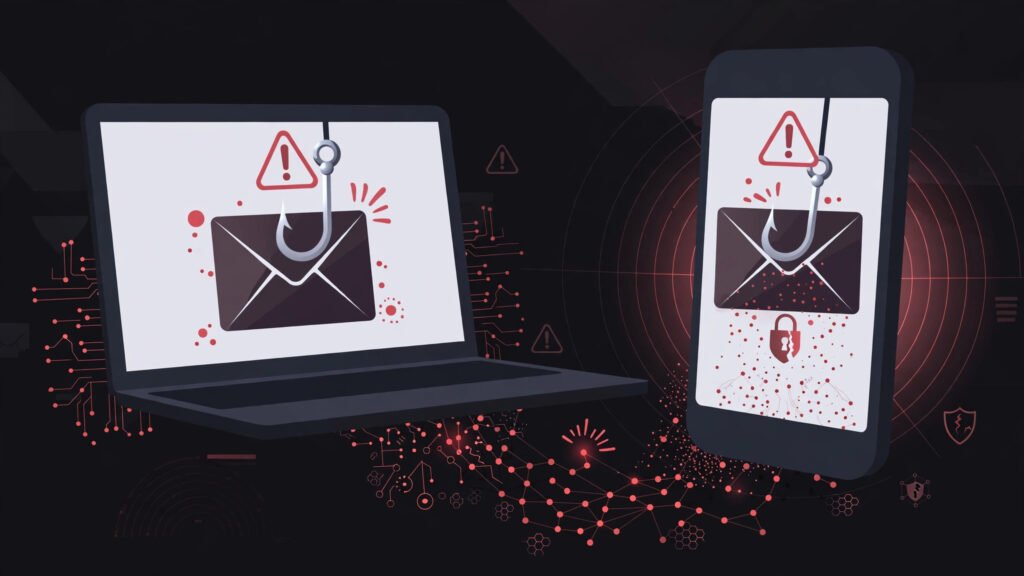
Malware needs a way in. These are the doors attackers use most often: Knowing how it travels is the first step to stopping it.
Phishing emails and messages. A fake message that looks like it is from your bank, a delivery company, your boss, or a service you use. It pushes you to click a link or open an attachment — fast, before you think.
Fake downloads and software cracks. Free versions of paid software, game mods, and “free” streaming tools are classic Trojan carriers. If a paid product is being offered for free on a random site, ask yourself who is really paying — and how.
Fake update prompts and ClickFix tricks. A growing trick in 2025–2026 is a page that tells you something is broken and instructs you to copy, paste, and run a command to “fix” it. Legitimate companies do not fix problems this way. If a website asks you to run a command manually, close the page.
Malicious ads and compromised websites. You do not always need to download something on purpose. Visiting a compromised site or clicking a poisoned ad can start a drive-by download, especially on an outdated browser.
USB drives and external devices. An unknown USB stick is not a gift. It is a risk. Do not plug in drives you found or were handed without verification.
Unpatched software. Attackers love old software because its weaknesses are already public. Recorded Future counted 215 actively exploited vulnerabilities in the first half of 2026 alone, up 34% year over year — a reminder that updates are not decoration. They are repairs to locks that criminals already know how to open.
Weak or reused passwords. Not a delivery method by itself, but often the second step. Once one password leaks, attackers try it everywhere.
12 Warning Signs of a Malware Infection
No single sign proves you have malware. A slow phone can just be a slow phone. But a pattern — especially a sudden change — deserves attention. If you are wondering what is malware doing on your device, these signs are the clues to look for.
Watch for:
- Your device suddenly becomes much slower, crashes, or restarts on its own
- Pop-ups appear even when your browser is closed
- Your homepage, search engine, or browser extensions change without your permission
- New apps, toolbars, or programs appear that you did not install
- Your battery drains unusually fast, or the device feels hot when idle
- Data usage spikes with no clear reason
- Friends receive messages or emails from you that you did not send
- You cannot open your antivirus, or it keeps turning itself off
- Files go missing, change names, or will not open — or a ransom note appears
- Money moves, password-reset emails arrive, or login alerts show places you have never been
- Your browser keeps redirecting you to strange or adult or gambling sites
- Your camera or microphone indicator turns on when you are not using them
The strongest signs are a security tool reporting a real threat, files being encrypted, or security software being disabled without your knowledge. The weaker signs — slowness, heat, battery drain — are reasons to investigate, not reasons to panic.
Malware Trends in 2026 You Should Know
These shifts also change the threat in 2026: less about broken files, more about stolen logins. Attackers used to break a computer. Today, they more often log in with your credentials.
1. Identity is the new target. As Verizon’s 2026 Data Breach Investigations Report shows, attackers increasingly log in instead of breaking in. Infostealers harvest passwords and session cookies at scale, then those stolen logins are sold or used for bigger attacks.
2. AI is helping attackers write better lures. AI has not replaced human criminals, but it helps them create convincing phishing messages, fake voices, and personalised scams faster. Recorded Future notes AI-enabled activity in 2026 is mostly augmenting existing attacks — making them faster and more believable — rather than fully autonomous robots hacking on their own.
3. Trusted tools are being abused. Attackers use legitimate remote-access and system tools already present on a device, so their activity blends in. This is why “I have antivirus, so I am fine” is no longer a complete answer.
4. Mobile malware is getting more creative. Recent reporting highlighted Android malware abusing NFC — the tap-to-pay feature — to steal card data and relay payments. Only install banking and payment apps from official stores, and be suspicious of any app asking for unusual NFC or accessibility permissions.
5. Ransomware is faster and more personal. Groups still use phishing and unpatched public-facing systems to get in, but they now move quickly, steal data, and try to disable backups so you have fewer options. Speed matters — for them, and for your response.
In short, today’s threats are often an identity problem, not just a device problem. If your password and session cookie are stolen, the attacker skips the infection part entirely.
How to Remove Malware Safely (Step by Step)
If you suspect an infection, stay calm and work in order. Randomly downloading “cleaner” tools from pop-ups will make things worse — many of those cleaners are malware. This is where knowing the basics helps: you work in order, not in panic.
Step 1: Stop sensitive activity. Do not log into banking, make payments, or type new passwords on the suspected device.
Step 2: Disconnect from the internet. Turn on airplane mode, turn off Wi-Fi, or unplug the network cable. This can stop data theft, remote control, and spread to other devices on the same network.
Step 3: Note what you saw. Write down — on paper or another device — any warning messages, strange app names, or the time problems started. If this is a work device, inform your IT or security team now, before you delete anything.
Step 4: Boot into Safe Mode (Windows/Android, where available). Safe Mode loads only essential system software and can stop malware from running while you clean up.
Step 5: Run a scan with a trusted, updated security tool. Use the protection already built into your system (such as Microsoft Defender) or a reputable product you installed before the infection from its official source. Run a full scan, then follow its instructions to quarantine or remove what it finds. Do not install a new tool from a search ad or pop-up during an infection.
Step 6: Remove suspicious apps and browser extensions. Uninstall programs and extensions you do not recognise or did not intentionally install, especially those added around the time problems began. Reset your browser if redirects persist.
Step 7: Update everything, then scan again. Update your operating system, browser, and security tool, restart normally, and run a second full scan. One clean scan after a real infection is good. Two are better.
Step 8: Secure your accounts — from a clean device. This step is the one people forget, and it is the most important. On a different, clean device, change important passwords — email first, then banking, then social and shopping — and turn on two-factor authentication everywhere you can. Sign out of all sessions where the service offers that option. Infostealers steal sessions, so a password change alone may not be enough if an old session stays logged in.
Step 9: Restore only from clean backups. If files are damaged or encrypted, restore from a backup made before the infection. Never restore system files from a backup taken while the device was infected.
When cleaning is not enough: If malware had administrator access, keeps coming back, disabled your security tools, or you simply cannot verify the device is clean, a factory reset or clean reinstall is the safer choice. It is inconvenient. It is also honest. A reinstall fixes the device — but it does not undo stolen data, so Step 8 still applies.
If money has been stolen or identity documents were exposed, contact your bank immediately and follow your local guidance for identity theft reporting.
How to Detect Malware on Windows 11
Windows 11 has good protection built in, so you don’t need to buy anything to check. Here’s how to detect malware on Windows 11:
- Windows Security: Start, then Windows Security, then Virus & threat protection, then Scan options, then Full scan.
- Offline scan: In the same screen, pick Microsoft Defender Antivirus (offline scan). Save your work first because your PC restarts.
- Task Manager: Press Ctrl + Shift + Esc and sort by CPU and Memory. Look up any unfamiliar process that’s using lots of resources while you’re idle.
- Startup apps: In Task Manager, open the Startup apps tab and disable anything suspicious.
- Installed apps and extensions: Remove anything you didn’t install, in Settings and in your browser.
How to Check for Malware on Mac
Macs get fewer threats than Windows PCs, but they aren’t immune. Here’s how to check for malware on Mac in a few minutes:
- Open Activity Monitor (Applications, then Utilities) and look for unknown processes using lots of CPU.
- Go to System Settings, then General, then Login Items and remove anything you didn’t add.
- Look through your Applications folder for apps you don’t remember installing.
- Review your browser extensions in Safari or Chrome and remove the ones you don’t use.
- Check for unfamiliar profiles under Privacy & Security.
- Run a full scan with a reputable Mac security app, since macOS has no manual scan button.
How to Remove Malware From Android
If your phone is acting strangely, here’s how to remove malware from Android without panic. Menu names change slightly between brands, but the idea is the same.
- Turn on Airplane mode to cut off the malware’s connection.
- Restart in Safe Mode so third-party apps are switched off.
- Open Settings, then Apps, and uninstall suspicious apps.
- If an app won’t uninstall, remove its rights under Device admin apps first, then delete it.
- Run a Google Play Protect scan from the Play Store.
- Clear your browser data and switch off notifications from sites you don’t trust.
- Scan with a reputable security app if problems continue.
- As a last resort, back up photos and contacts and do a factory reset. Restore files only, not apps.
Afterwards, change your passwords from a different, clean device and check your bank statements.
How to Prevent Malware: A Practical Checklist
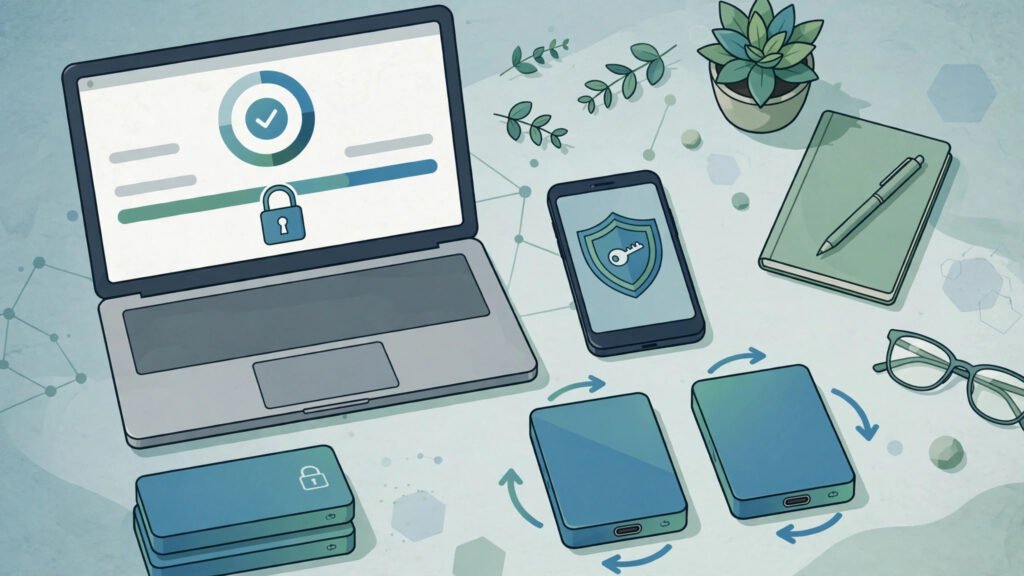
You do not need expensive tools or technical skills to stop most malware. You need a few habits, done consistently. Understanding the threat is what makes these habits work — each one closes a door attackers use.
Keep everything updated. Turn on automatic updates for your operating system, browser, apps, and router. Most attacks exploit known, already-fixed weaknesses.
Use strong, unique passwords and a password manager. One password for everything means one leak unlocks everything. A manager remembers strong passwords so you do not have to reuse weak ones.
Turn on two-factor authentication (2FA / MFA). Prefer an authenticator app or security key over SMS codes where possible. This single step blocks many account takeovers, even when a password is stolen.
Think before you click. Check the sender’s real address, hover over links, and be suspicious of urgency. “Your account will close in 2 hours” is a pressure tactic, not customer service.
Download only from official sources. Official app stores and vendor websites only. Avoid cracks, key generators, and modified apps entirely.
Back up the 3-2-1 way. Keep at least 3 copies of important data, on 2 different types of storage, with 1 copy offline or off-site and disconnected. Test your restore once — a backup you have never tested is a hope, not a plan.
Use reputable, built-in protection and keep it on. Keep your antivirus / endpoint protection and firewall enabled. Do not disable them because a random website or caller told you to.
Be careful with permissions. When an app asks for access it does not need — a flashlight app wanting your contacts, a game wanting accessibility control — say no, or delete the app.
Secure your home router. Change its default admin password, keep its firmware updated, and use WPA2 or WPA3 encryption.
Teach the household. Most infections arrive through a person, not a machine. A 10-minute conversation with family about fake delivery messages and fake bank calls prevents more harm than any single product.
Do these basics well and you will avoid the large majority of everyday infections. Perfect security does not exist. Boring, consistent security works remarkably well.
What to Do If You Think Your Device Is Infected Right Now
Short version, if you are reading this in a stressful moment:
- Stop. Do not type passwords or pay anything.
- Disconnect the device from Wi-Fi / internet.
- Do not follow instructions in any pop-up, even if it claims to be Microsoft, Apple, or your bank. Close it.
- From a clean phone or computer, secure your email and banking passwords and turn on 2FA.
- Scan and clean the device using the steps above, or reset it if the infection is serious.
- If it is a work device, call IT before you try to fix it yourself.
Take a breath. Acting in the right order in the first hour matters far more than acting fast in the wrong order.
Where to Report Malware and Online Scams in the US, UK and Europe
If malware has cost you money or exposed your data, call your bank first if any accounts are at risk, then report it through the official channel for your country.
- United States: report cybercrime to the FBI Internet Crime Complaint Center (IC3) and fraud to the FTC at ReportFraud.ftc.gov.
- United Kingdom: report fraud and cybercrime to Report Fraud, the police service that replaced Action Fraud. Forward suspicious emails to the National Cyber Security Centre (NCSC) at report@phishing.gov.uk.
- Europe: contact your national police or cybercrime unit. Europol’s list of national reporting channels shows where to go in each member state.
Related guides: What Is Phishing? | AI Agent Security Risks | Will AI Replace Cybersecurity? | Fake Coding Test Malware
Frequently Asked Questions
What is malware in simple words?
Malware is harmful software made to steal data, damage a device, spy on you, or give an attacker control without your permission. Viruses and ransomware are types of malware. That, in one sentence, is the definition.
What is the difference between malware and a virus?
A virus is one type of malware that attaches to a file and spreads when the file is opened. Malware is the broader term for all harmful software, including viruses, worms, Trojans, spyware, and ransomware. Remember: one is the family, the other is a member.
Can a phone get malware?
Yes. Android phones are targeted through fake apps, malicious links, and apps that abuse accessibility or NFC permissions. iPhones are harder to infect but are not immune, especially through phishing, malicious profiles, and account theft. Keep phones updated and install apps only from official stores.
Can malware steal my passwords?
Yes. Infostealer malware and keyloggers are specifically designed to steal saved passwords, typed credentials, cookies, and active login sessions. That is why changing passwords from a clean device and signing out of all sessions after an infection is essential.
Does a factory reset remove malware?
In most cases, yes — a full factory reset or clean reinstall removes malware on that device. It does not undo damage already done, such as stolen passwords or copied files, so you must still secure your accounts afterwards.
Does antivirus stop all malware?
No single tool stops everything, especially new fileless attacks and stolen-login abuse. Antivirus is one important layer. Updates, unique passwords, 2FA, backups, and careful clicking are the other layers that make protection real.
Should I pay the ransom if ransomware locks my files?
Authorities generally advise against paying, because payment does not guarantee your files will be returned and may fund further crime. Restore from clean, offline backups instead, and report the incident to your local cybercrime authority and, for businesses, your insurer and legal counsel. See CISA’s #StopRansomware resources for free, official prevention and response checklists.
Conclusion: Stay Calm, Stay Updated, Protect Your Logins
Malware sounds technical, but the idea is simple: it is software working against you, on a device you paid for, using trust you gave it by accident. That is the whole idea in one sentence.
Knowing the basics is not enough on its own — acting on them is what protects you. You cannot stop attackers from trying. You can make their job much harder — by keeping software updated, being careful with links, and protecting your logins.
And if something does go wrong, remember the order: disconnect, do not panic, secure your accounts from a clean device, then clean or rebuild the infected one.
Share this guide with one person in your family who clicks first and thinks later. That single share may protect them more than any app they could install.
Have you noticed suspicious behaviour on your device? Do not wait for it to get worse. Run a full scan today, check your important accounts, and make sure your backup actually works.
If you need help with a suspected infection, you can contact Cybeslify for guidance.
3 Responses